-: Increase Virtual RAM - To Make Your System Faster :-
Follow the steps given below :-
1) Hold down the 'Windows' Key and Press the 'Pause/Break' button at the top right of your keyboard.
Another way is Right-Clicking 'My Computer' and then Select 'Properties'.
2) Click on the 'Advanced' tab.
3) Under 'Performance', click 'Settings'.
4) Then click the 'Advanced' tab on the button that pops up.
5) Under 'Virtual Memory' at the bottom, click 'Change'.
6) Click the 'Custom Size' button.
7) For the initial size (depending on your HD space), type in anywhere from 1000-1500 (although I use 4000), and for the Maximum size type in anywhere from 2000-2500 (although I use 6000).
8) Click 'Set', and then exit out of all of the windows.
9) Finally, Restart your computer.
10) You now have a faster computer and 1-2GB of Virtual RAM..!
-: Convert FAT - NTFS :-
To convert a FAT partition to NTFS, perform the following steps.
1) Open 'Command Prompt'.
2) At the command prompt, type the following-
CONVERT [driveletter]: /FS:NTFS.
'Convert.exe' will attempt to convert the partition to NTFS.
NOTE :- Although the chance of corruption or data loss during the conversion from FAT to NTFS is minimal, it is best to perform a full backup of the data on the drive that it is to be converted prior to executing the convert command.
-: Hide Entire Drives Partition Without Registry :-
Here is a cool technique which hides entire hard disk drives by a simple procedure.
This is the best security tip to be employ against unauthorised users.
1) Go to Start > Run > type "diskpart".
A DOS window will appear with following description.
DISKPART>
2) Then type "list volume"
The result will look something like one as shown below-

3) Suppose you want to hide drive E then type "select volume 3"
Then a message will appear in same window { Volume 3 is the selected volume}
4) Now type "remove letter E"
Now a message will come { Diskpart Removed the Drive letter }
sometime it requires to reboot the computer.
Diskpart will remove the letter.
Windows XP is not having capabilty to identify the unknown volume.
Your Data is now safe from unauthorised users.
To access the content of hidden Drive repeat the process mentioned above. But in 4th step replace " remove" by "assign".
It means type "assign letter E".
Disable Error Report In Windows

Microsoft’s Error Reporting in windows sometimes is disturbing; most of us don’t want to send that error report because it’s of no use.
There’s an easy way to disable Microsoft error report in windows.
Disable Microsoft Error report in Windows XP :
1) Open Control Panel (Start > Control Panel)
2) Open the Problem Reports & Solutions applet Under advanced options and disable error reporting.
Disable Microsoft Error report in Windows Vista :
1) Right click on my computer (Desktop) and click properties
2) Click the Advanced Tab
3) You’ll see a “Error reporting” button at the bottom, click it
4) Select Disable Error Reporting.
And you’re done….!
Remove shortcut arrow from desktop icons completely
To remove shortcut arrow from desktop icons in any type of document:a) Perform instructions described under ‘Remove shortcut arrow from desktop icons’. For your convenience, steps 1 to 3 are reported here.
b) Perform instructions described under ‘Remove shortcut arrow from desktop icons (2)’. For your convenience, steps 4 and 5 are reported here.
c) And finally, do the same with conferencelink, docshortcut, internetshortcut and wshfile.
So, here is a summary of all actions:
1. Start regedit.
2. Navigate to HKEY_CLASSES_ROOT\lnkfile
3. Delete the IsShortcut registry value.
4. Navigate to HKEY_CLASSES_ROOT\piffile
5. Delete the IsShortcut registry value.
6. Navigate to HKEY_CLASSES_ROOT\ConferenceLink
7. Delete the IsShortcut registry value.
8. Navigate to HKEY_CLASSES_ROOT\DocShortCut
9. Delete the IsShortcut registry value.
10.Navigate to HKEY_CLASSES_ROOT\InternetShortcut
11. Delete the IsShortcut registry value.
12. Navigate to HKEY_CLASSES_ROOT\WSHFile
13. Delete the IsShortcut registry value.
14. Close regedit.
Logoff and… Enjoy!
Note : Please note that in some cases deactivating the arrow for *.LNK files might lead to duplicate items in the Explorer Context menu.
Windows Genuine Hack – 100% Works
Windows Genuine Hack :-1) Download “Windows.Genuine.Advantage.Validation..rar”
2) Extract It.
3) Run “installer.bat” file.
4) Reboot.
5) Enjoy Your Validated Windows.
Download :
http://rapidshare.com/files/115531401/Windows.Genuine.Advantage.Validation..rar
-: Password Hacking :-
Password cracking is the process of recovering secret passwords from data that has been stored in or transmitted by a computer system. A common approach is to repeatedly try guesses for the password.
Most passwords can be cracked by using following techniques :
1) Hashing :- Here we will refer to the one way function (which may be either an encryption function or cryptographic hash) employed as a hash and its output as a hashed password.
If a system uses a reversible function to obscure stored passwords, exploiting that weakness can recover even 'well-chosen' passwords.
One example is the LM hash that Microsoft Windows uses by default to store user passwords that are less than 15 characters in length.
LM hash breaks the password into two 7-character fields which are then hashed separately, allowing each half to be attacked separately.
 |
Hash functions like SHA-512, SHA-1, and MD5 are considered impossible to invert when used correctly.
|
2) Guessing :- Many passwords can be guessed either by humans or by sophisticated cracking programs armed with dictionaries (dictionary based) and the user's personal information.
Not surprisingly, many users choose weak passwords, usually one related to themselves in some way. Repeated research over some 40 years has demonstrated that around 40% of user-chosen passwords are readily guessable by programs. Examples of insecure choices include:
* blank (none)
* the word "password", "passcode", "admin" and their derivatives
* the user's name or login name
* the name of their significant other or another person (loved one)
* their birthplace or date of birth
* a pet's name
* a dictionary word in any language
* automobile licence plate number
* a row of letters from a standard keyboard layout (eg, the qwerty keyboard -- qwerty itself, asdf, or qwertyuiop)
* a simple modification of one of the preceding, such as suffixing a digit or reversing the order of the letters.
and so on....
* the word "password", "passcode", "admin" and their derivatives
* the user's name or login name
* the name of their significant other or another person (loved one)
* their birthplace or date of birth
* a pet's name
* a dictionary word in any language
* automobile licence plate number
* a row of letters from a standard keyboard layout (eg, the qwerty keyboard -- qwerty itself, asdf, or qwertyuiop)
* a simple modification of one of the preceding, such as suffixing a digit or reversing the order of the letters.
and so on....
In one survery of MySpace passwords which had been phished, 3.8 percent of passwords were a single word found in a dictionary, and another 12 percent were a word plus a final digit; two-thirds of the time that digit was.
|
A password containing both uppercase & lowercase characters, numbers and special characters too; is a strong password and can never be guessed.
|
Check Your Password Strength
|
3) Default Passwords :- A moderately high number of local and online applications have inbuilt default passwords that have been configured by programmers during development stages of software. There are lots of applications running on the internet on which default passwords are enabled. So, it is quite easy for an attacker to enter default password and gain access to sensitive information. A list containing default passwords of some of the most popular applications is available on the internet.
|
Always disable or change the applications' (both online and offline) default username-password pairs.
|
4) Brute Force :- If all other techniques failed, then attackers uses brute force password cracking technique. Here an automatic tool is used which tries all possible combinations of available keys on the keyboard. As soon as correct password is reached it displays on the screen.This techniques takes extremely long time to complete, but password will surely cracked.
|
Long is the password, large is the time taken to brute force it.
|
5) Phishing :- This is the most effective and easily executable password cracking technique which is generally used to crack the passwords of e-mail accounts, and all those accounts where secret information or sensitive personal information is stored by user such as social networking websites, matrimonial websites, etc.
Phishing is a technique in which the attacker creates the fake login screen and send it to the victim, hoping that the victim gets fooled into entering the account username and password. As soon as victim click on "enter" or "login" login button this information reaches to the attacker using scripts or online form processors while the user(victim) is redirected to home page of e-mail service provider.
Phishing is a technique in which the attacker creates the fake login screen and send it to the victim, hoping that the victim gets fooled into entering the account username and password. As soon as victim click on "enter" or "login" login button this information reaches to the attacker using scripts or online form processors while the user(victim) is redirected to home page of e-mail service provider.
|
Never give reply to the messages which are demanding for your username-password, urging to be e-mail service provider.
|
It is possible to try to obtain the passwords through other different methods, such as social engineering, wiretapping, keystroke logging, login spoofing, dumpster diving, phishing, shoulder surfing, timing attack, acoustic cryptanalysis, using a Trojan Horse or virus, identity management system attacks (such as abuse of Self-service password reset) and compromising host security.
However, cracking usually designates a guessing attack.
-: Pop A Banner Each Time Windows Boots :-
To pop a banner which can contain any message you want to display just before a user is going to log on.
Go to the key :- HKEY_LOCAL_MACHINE\SOFTWARE\Microsoft\Windows\CurrentVersion\WinLogon
Now create a new string Value in the right pane named 'LegalNoticeCaption' and enter the value that you want to see in the MenuBar.
Now create yet another new string value and name it:
'LegalNoticeText'.
Modify it and insert the message you want to display each time Windows boots.
This can be effectively used to display the company's private policy each time the user logs on to his NT box.
It's '.reg' file would be:
REGEDIT4 [HKEY_LOCAL_MACHINE\SOFTWARE\Microsoft\Windows\CurrentVersion\Winlogon] "LegalNoticeCaption"="Caption here."
-: Improve Windows-XP Shutdown Speed :-
This tweak reduces the time Windows-XP waits before automatically closing any running programs when you give it the command to shutdown.
Follow the steps as given below-
1) Go to Start then select Run
2) Type 'Regedit' and click ok
3) Find 'HKEY_CURRENT_USER\Control Panel\Desktop\'
4) Select 'WaitToKillAppTimeout'
5) Right click and select 'Modify'
6) Change the value to '1000'
7) Click 'OK'
8) Now select 'HungAppTimeout'
9) Right click and select 'Modify'
10) Change the value to '1000'
11) Click 'OK'
-: Folder Lock Without Any Software :-
Folder Lock With Password Without Any Software-
Paste the code given below in notepad and 'Save' it as batch file (with extension '.bat').
Any name will do.
Then you see a batch file. Double click on this batch file to create a folder locker.
New folder named 'Locker' would be formed at the same location.
Now bring all the files you want to hide in the 'Locker' folder. Double click on the batch file to lock the folder namely 'Locker'.
If you want to unlock your files,double click the batch file again and you would be prompted for password.
Enter the password and enjoy access to the folder.
if EXIST "Control Panel.{21EC2020-3AEA-1069-A2DD-08002B30309D}" goto UNLOCK
if NOT EXIST Locker goto MDLOCKER
:CONFIRM
echo Are you sure u want to Lock the folder(Y/N)
set/p "cho=>"
if %cho%==Y goto LOCK
if %cho%==y goto LOCK
if %cho%==n goto END
if %cho%==N goto END
echo Invalid choice.
goto CONFIRM
:LOCK
ren Locker "Control Panel.{21EC2020-3AEA-1069-A2DD-08002B30309D}"
attrib +h +s "Control Panel.{21EC2020-3AEA-1069-A2DD-08002B30309D}"
echo Folder locked
goto End
:UNLOCK
echo Enter password to Unlock folder
set/p "pass=>"
if NOT %pass%==type your password here goto FAIL
attrib -h -s "Control Panel.{21EC2020-3AEA-1069-A2DD-08002B30309D}"
ren "Control Panel.{21EC2020-3AEA-1069-A2DD-08002B30309D}" Locker
echo Folder Unlocked successfully
goto End
:FAIL
echo Invalid password
goto end
:MDLOCKER
md Locker
echo Locker created successfully
goto End
:End
if NOT EXIST Locker goto MDLOCKER
:CONFIRM
echo Are you sure u want to Lock the folder(Y/N)
set/p "cho=>"
if %cho%==Y goto LOCK
if %cho%==y goto LOCK
if %cho%==n goto END
if %cho%==N goto END
echo Invalid choice.
goto CONFIRM
:LOCK
ren Locker "Control Panel.{21EC2020-3AEA-1069-A2DD-08002B30309D}"
attrib +h +s "Control Panel.{21EC2020-3AEA-1069-A2DD-08002B30309D}"
echo Folder locked
goto End
:UNLOCK
echo Enter password to Unlock folder
set/p "pass=>"
if NOT %pass%==type your password here goto FAIL
attrib -h -s "Control Panel.{21EC2020-3AEA-1069-A2DD-08002B30309D}"
ren "Control Panel.{21EC2020-3AEA-1069-A2DD-08002B30309D}" Locker
echo Folder Unlocked successfully
goto End
:FAIL
echo Invalid password
goto end
:MDLOCKER
md Locker
echo Locker created successfully
goto End
:End
Use Your Webcam as Security camera:-
- Install (if it isn’t already) your webcam. If you’re pulling one
out of the closet and have long since lost the install CD, here are
links to download the drivers for some of the most common webcam
vendors:
Creative Labs
Logitech
Labtec
D-Link - Download and install Dorgem. The installation is very straight forward, you’ll mostly click Next a bunch of times.
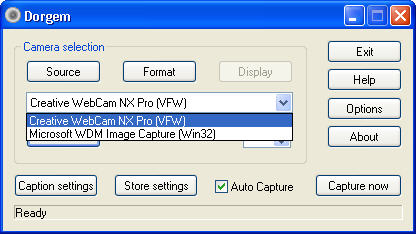
- Launch Dorgem and select your Webcam from the Camera selection drop-down list.
- Click the Preview button to display the view your webcam has. Physically adjust the camera to face the area you want to monitor.
- Click the Source button and make any adjustments to the Brightness, Contrast and/or other settings. Click OK when you’re happy with the results.
- Click the Options button
- Place a check in the box labeled Use motion detection. Certain Webcams (most often Labtec) can require Dorgem to “reconnect” after a certain period of no motion being detected. For now leave this box unchecked. If you notice that your Webcam isn’t capturing any images even though it should have, revisit this section and place a check in the box. It should be noted that if you do need to use this setting, your cam will likely take a picture every time Dorgem “reconnects” to it, so try using 5 minute (or higher) intervals. Otherwise you’ll end out with a LOT of pictures, most of which won’t have captured actual “motion”.
- Click OK after you have enabled motion detection to return to the main Dorgem window. Now you’ll need to create a ‘profile’ – which Dorgem refers to as Storage events. Click the Store settings button to create an event.
- Choose File and click OK (adding an FTP event is covered in the Advanced section, set a local file first to make sure everything works)
- Enter a Name: for this event, make sure Enable is checked, and then set an interval. Since you’ll be using motion detection, you probably want to capture images fairly “closely together” – so try 1 or 2 seconds. If you know for certain that this camera will detect a lot of motion (your camera faces an area with a lot of movement) you may want to set this somewhat higher. This setting can always be changed later, so experiment a bit. Click the … button next to Filename:
- Here you’ll be setting the folder to save images to, and the actual filename for each image. Dorgem allows special characters in file names so that each name is unique (otherwise each time your camera detected motion it would take a picture and over-write the previous one). Somewhere in the file name, enter the characters %g – which will give your file name a time-stamp. If you use %G in the file name, it will also add the current year. Because my camera is taking pictures of movement on my patio, I named the file patio-camera%G%g. This results with images being saved as patio-camera20060926165001.jpg. Broken down that’s patio-camera – the current year – the current month, day, hour, minute and second. Click Save after you’ve selected a folder and file name.
- Click OK
- Click Close to return to the main Dorgem widow
- Wave your hand in front of the camera. Or throw something within its view. Jump around in front of it like an idiot. If everything was set correctly, you should now have some images in the folder you specified. Go take a look..
- If it didn’t work, start again at step 3 and double-check everything. The built-in Help file included with Dorgem is actually pretty helpful – use it for troubleshooting. Feel free to leave a comment below and include as much info as possible and I’ll try to help as well.
click to enlarge


click to enlarge

click to enlarge

click to enlarge

click to enlarge


click to enlarge

click to enlarge

click to enlarge

click to enlarge

Multiple Webcams
If you can get more than one Webcam to work in Windows (not always an easy task, esp. if they’re Labtec), Dorgem can support them all. You don’t need to install another copy of Dorgem, but you do need to start each instance differently. To do so, follow the steps below..
- Right-click on your current Dorgem desktop icon and select Create Shortcut
- You should see a new Dorgem (2) icon on your desktop – right-click on it this time, and choose Properties
- Make sure the Shortcut tab is selected, and change the Target: to:
“C:\Program Files\Dorgem\Dorgem.exe” /c:cam2
If you installed Dorgem to somewhere other than the default location, make the appropriate changes. - Click Apply and then < strong=""> to return to your desktop. Double-click the Dorgem (2) icon. When it launches, notice that it’s titled Dorgem (cam2). Repeat the same steps you did for the first camera (though choose a different file name to save the image as). <>

click to enlarge

click to enlarge

click to enlarge

click to enlarge
If you’re using this as a personal security system for your residence, you may want to store the files off-site, in case someone steals your computer (rendering your security totally useless). To do so, follow these steps.. (note: you’ll need an FTP account – check to see if your ISP provides one for you, eg. Personal Web Space/storage).
- Click the Store settings button and then click Add.
- This time select FTP and then click OK
- Enter in the required information. The file name can use special characters (see step 11 in the first How part of this tutorial). You may have to experiment with some of these settings. For example, I have to use Passive mode because of the way my home network is set up. You may not. Click OKwhen all of the required info has been entered.
- Wave your hand in front of the webcam (or throw something through its field of view). Check your FTP site and you should see a new file (or files) there. Note: when I have both save to my local hard drive and save to FTP enabled, only one works. You may need to disable the local copy if you want FTP to work. If you figure out a way for both to work, by all means let me know.

click to enlarge


click to enlarge
- Does your webcam have an annoying light that gives away its location when you try to hide it?
- Find some duct tape that matches the colour of your camera. Or, masking tape and a marker.
- Place tape over the light.
- Your camera will now blend in like a ninja. Extra bonus: use the duct tape to hold your hidden camera in place.


Yes, birds will trigger the motion sensing webcam.


Seriously, this isn’t a shortcut for you to use.


How patio furniture gets stolen.


I don’t care if you’re practicing your tight-rope walking, stop using this area as a shortcut.


